
Important information
- Since August 2024, WooCommerce version 9.2 finally includes an EAN field in the product information. Fill in this field to ensure your products’ EANs are also synced to my.QLS. You can find this field below the SKU field, labeled: GTIN, UPC, EAN, or ISBN.
- If you have multiple QLS integrations with the same products, make sure the EANs and SKUs are the same across all shops. This ensures the correct links are made to the correct products and helps prevent duplicate products in my.QLS.
- EANs and SKUs are no longer updated after the first synchronization. So always make sure the data is correct before saving it in your webshop and syncing it to my.QLS.
WooCommerce configuration
Create API-key
- Go to WooCommerce > Settings > Advanced in WooCommerce.
- Click REST API.
- Click Add key.
- Enter a Description (for example: QLS Fulfilment).
- Under Permissions, select Read/Write.
- Click Generate API key.
Your API key for my.QLS has now been created. Do not close this window, because you will only see the keys once.
Check your products
Before you start creating the integration in my.QLS, we recommend reviewing your products in the shop. Make sure your products have unique EANs and SKUs. It is also helpful to remove any old products from the shop, so you start with an up-to-date overview in QLS.
My.QLS configuration
Now that you have created the API key in WooCommerce, you can continue with the following steps in my.QLS.
Create the integration
- Go to my.QLS > Settings > Integrations.
- Click Create.
- Select WooCommerce from the list of integrations and click Connect.
After completing these steps, you will be taken to the integration screen. Enter the following details to connect my.QLS to WooCommerce:
- Integration name: Enter a name to make your connection easy to recognize
- Trade name: Select the trade name you want to link to this integration
- Webshop URL: Enter your shop URL, including
https:// - Consumer Key: Enter the Consumer Key you just created in WooCommerce
- Consumer Secret: Enter the Consumer Secret you just created in WooCommerce
- API Version: Select V3
Once you have filled in all the fields above, click Save at the bottom. Your settings will now be saved and the connection with WooCommerce will be tested. If everything is configured correctly, you will see a message confirming that WooCommerce has been successfully connected.
In the next part of the documentation, all integration settings are explained. If you are already familiar with these, continue to Getting started.
Integration settings
Now that the connection with WooCommerce is active, you can start configuring your integration. Click the WooCommerce integration you just created and you will see a number of additional options. These settings can be adjusted based on your preferred process.
Automatically sync orders
This setting automatically syncs orders from your shop. All orders that are in processing/in behandeling status and have been paid in your shop are imported into my.QLS. This sync runs approximately every 5 minutes.
Tip: In most cases, we recommend only enabling this once your inventory has been received by QLS.
Automatically sync inventory
This setting automatically syncs inventory to your shop. In our fulfilment process, the inventory in my.QLS is the leading source.
Tip: In most cases, we recommend only enabling this once your inventory has been received by QLS.
Synchroniseer producten automatisch
This setting automatically syncs your products from your shop. This task runs automatically around midnight. By default, all products in your shop are synced to my.QLS.
Tip: In most cases, we recommend only enabling this once all your products have unique EANs and SKUs.
Create unknown products
This setting ensures that products not yet created in my.QLS can be created automatically. In most cases, this setting can remain enabled, except if you temporarily do not want new products from your shop to be created in my.QLS.
Matching products
Products can be matched based on certain values from your shop. Matching products ensures that the correct link is created for the correct product. Without this link, orders and inventory cannot be synchronized. For WooCommerce, we recommend selecting Match products by EAN and SKU.
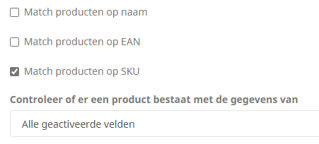
Tip: Make sure your EANs and SKUs are filled in correctly in your shop before saving these products. Saving without EANs and SKUs, or saving from a duplicated product, may cause incorrect links.
Sync product fields
This setting automatically updates the configured fields for your products in my.QLS. If these fields are empty, the empty values will also be copied over. If there is an integration with an external party (for example, Optiply), it is advisable to leave this sync disabled. 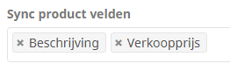
Automatically complete orders
This setting ensures that once an order has been processed by us, it is automatically completed in WooCommerce. In most cases, we recommend always keeping this setting enabled.
Sync immediately
At the bottom of the integration page, you will find three buttons to immediately sync your orders, products, or inventory. This can be useful if you want to see your newly created products in my.QLS right away. Running these tasks may take a few minutes.

Checkout settings
Halfway down the page, you have probably also come across the checkout settings. For WooCommerce, we offer our own checkout that allows you to offer your customers extra options such as pickup points or evening delivery. Click here for more information about the QLS checkout for WooCommerce.
Getting started
Now that you are familiar with all integration settings, you can begin syncing your products. If you already have another integration, make sure any overlapping products use the same EANs and SKUs. This helps prevent duplicate products from being created in my.QLS.
Once everything is in order, click Sync products at the bottom of the integration page. Within a few minutes, you should see the products from your WooCommerce shop in Fulfilment > Products in my.QLS.
You have now completed the full integration process. Would you like to immediately register your Incoming goods with QLS? Then read more about our Purchase Orders here.
Support
If you have any questions and/or comments about our integration or this documentation, you can submit them in a ticket to our IT Support team or email it-support@qls.nl. For questions about the fulfilment process, purchase orders, or warehouse-related matters, you can contact Warehouse Support or Account Management. Prefer to call? You can reach us at 078-6475590.